GitHub Actions Explained: A Complete CI/CD Guide for Next.js
Learn how GitHub Actions works and build a practical Next.js CI/CD pipeline with caching, secrets, matrices, artifacts, security controls, and deployment gates.
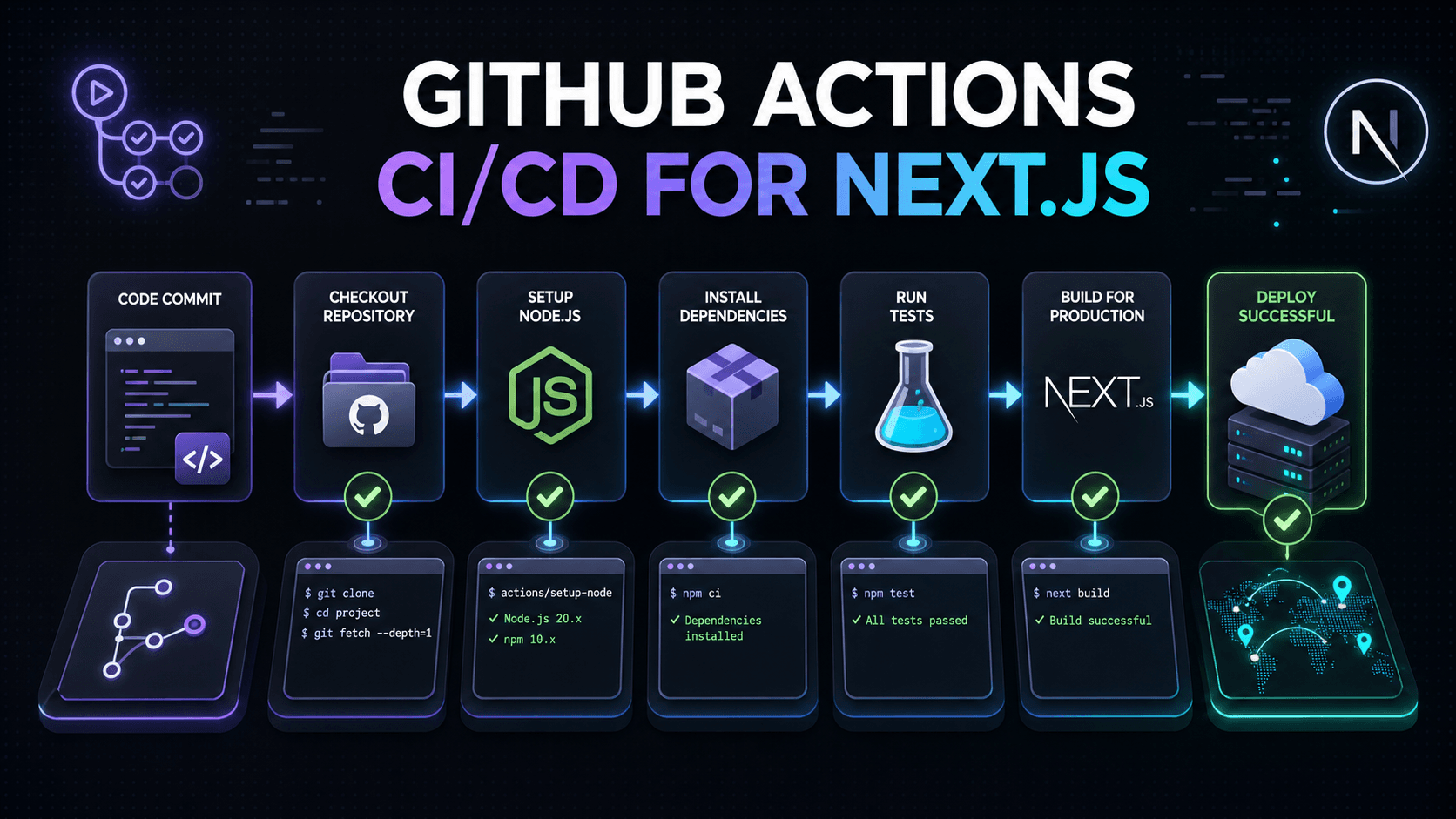
GitHub Actions lets you automate the repetitive work around your code. Instead of installing dependencies, running tests, creating a production build, and deploying by hand after every change, you can describe the entire process in a YAML file and let GitHub run it consistently.
In this guide, we will build a real continuous integration workflow for a Next.js application. Along the way, we will explore the concepts behind GitHub Actions, explain every line of the workflow, and cover practical topics such as caching, secrets, permissions, matrices, artifacts, deployment environments, troubleshooting, and security.
What is GitHub Actions?
GitHub Actions is an automation platform built into GitHub. It listens for events in a repository and runs one or more tasks in response. A workflow can start when someone:
- pushes code to a branch,
- opens or updates a pull request,
- creates a release or tag,
- opens an issue,
- starts the workflow manually, or
- reaches a scheduled time.
Its most common use case is CI/CD.
- Continuous Integration (CI) checks that every code change can safely integrate with the rest of the project. It commonly runs linting, automated tests, type checks, and production builds.
- Continuous Delivery or Deployment (CD) moves validated code to a staging or production environment. Continuous delivery keeps the release ready for approval; continuous deployment publishes it automatically.
GitHub Actions is not limited to deployment. You can also use it to scan dependencies, build Docker images, publish packages, generate documentation, create releases, or run scheduled maintenance tasks.
The building blocks
Understanding a few terms makes workflow files much easier to read.
Workflow
A workflow is the complete automation process. Workflows are YAML files stored in:
.github/workflows/A repository can contain several independent workflows:
.github/workflows/ci.yml
.github/workflows/deploy.yml
.github/workflows/security.yml
Keeping unrelated concerns in separate files can make permissions, logs, and failures easier to understand.
Event
An event is what starts a workflow. Events are declared in the on section:
on:
  push:
    branches: [main]
  pull_request:
This configuration runs the workflow when code reaches main and whenever a pull request is opened or updated.
Job
A job is a group of steps that run on the same machine. A workflow may contain jobs such as lint, test, build, and deploy. Jobs run in parallel by default. Use needs when one job must wait for another:
jobs:
  test:
    runs-on: ubuntu-latest
    steps:
      - run: yarn test

  deploy:
    needs: test
    runs-on: ubuntu-latest
    steps:
      - run: ./deploy.sh
Here, deploy starts only after test succeeds.
Step
A step is one operation inside a job. It can run a shell command or call a reusable action:
steps:
  - name: Install dependencies
    run: yarn install --frozen-lockfile
Steps in one job run in order. If a step fails, later steps normally do not run.
Action
An action is a reusable automation component. For example, the official checkout action downloads repository code to the runner:
- uses: actions/checkout@v4The v4 part selects a major version. Before using a third-party action, review its source, publisher, requested permissions, and release history.
Runner
A runner is the machine that executes a job. GitHub provides hosted Ubuntu, Windows, and macOS runners:
runs-on: ubuntu-latestYou can also connect your own machine as a self-hosted runner. That gives you more control, but you become responsible for isolation, operating-system updates, credentials, cleanup, and security.
Our first Next.js CI workflow
Our goal is simple: whenever a change is pushed to main or proposed in a pull request, install exactly the dependencies in the lockfile and verify that Next.js can create a production build.
Create this file in the project root:
.github/workflows/ci.ymlAdd the following workflow:
name: CI

on:
  push:
    branches: [main]
  pull_request:

permissions:
  contents: read

concurrency:
  group: ci-${{ github.workflow }}-${{ github.ref }}
  cancel-in-progress: true

jobs:
  build:
    name: Build
    runs-on: ubuntu-latest
    timeout-minutes: 15

    steps:
      - name: Checkout repository
        uses: actions/checkout@v4

      - name: Set up Node.js
        uses: actions/setup-node@v4
        with:
          node-version: 20
          cache: yarn

      - name: Install dependencies
        run: yarn install --frozen-lockfile

      - name: Build application
        run: yarn build
Now let us break it down.
Naming and triggering the workflow
name: CI

on:
  push:
    branches: [main]
  pull_request:
name is the label displayed in the Actions tab. The push filter limits that event to main, while pull_request validates proposed changes before they are merged.
To run the workflow for pushes to every branch, remove the branch filter:
on:
  push:
  pull_request:
To add a Run workflow button in the GitHub interface, include workflow_dispatch:
on:
  push:
    branches: [main]
  pull_request:
  workflow_dispatch:
Scheduled workflows use cron syntax. GitHub evaluates cron schedules in UTC:
on:
  schedule:
    - cron: '0 3 * * 1'
This example runs every Monday at 03:00 UTC.
Applying the principle of least privilege
permissions:
  contents: read
GitHub creates a temporary GITHUB_TOKEN for a workflow run. Our CI job only needs to read repository contents, so we explicitly grant that permission and nothing more.
If a later job needs to create a deployment, add only the required permission:
permissions:
  contents: read
  deployments: write
Avoid broad permissions such as write-all, especially when a workflow executes third-party actions. A build job does not need permission to modify code, issues, packages, or releases.
Canceling outdated runs
concurrency:
  group: ci-${{ github.workflow }}-${{ github.ref }}
  cancel-in-progress: true
Imagine pushing three commits to the same pull request within a minute. The first two builds no longer represent the latest code. concurrency groups runs by workflow and Git reference, then cancels an older run when a newer one starts. This saves runner time and keeps the results focused on the latest commit.
Selecting a runner and timeout
jobs:
  build:
    runs-on: ubuntu-latest
    timeout-minutes: 15
The build runs on a GitHub-hosted Ubuntu machine. The timeout prevents a frozen process from consuming runner time indefinitely. Fifteen minutes is a reasonable safety limit for a project that normally builds in a few minutes; adjust it to match your application.
Every job starts in a fresh environment. Do not assume that files, globally installed packages, or state from an earlier job will still exist.
Checking out the repository
- name: Checkout repository
  uses: actions/checkout@v4
A runner does not automatically contain your project. actions/checkout downloads the commit that triggered the workflow into the job's working directory. Commands in later steps can then access the source files.
The default shallow checkout is efficient for normal builds. If a tool genuinely needs the complete Git history, use:
- uses: actions/checkout@v4
  with:
    fetch-depth: 0
Do not fetch full history unless it is needed, because it increases network usage and startup time.
Setting up Node.js and caching Yarn downloads
- name: Set up Node.js
  uses: actions/setup-node@v4
  with:
    node-version: 20
    cache: yarn
This step prepares Node.js 20 and enables caching for Yarn. Using the same major Node.js version locally, in CI, and in production reduces environment-specific failures. A project can make that choice even more visible with an .nvmrc file or the engines field in package.json.
The cache stores package-manager download data; it does not simply preserve node_modules. The lockfile contributes to the cache key, so dependency changes create an appropriate new cache entry.
For a monorepo whose lockfile is not in the repository root, specify its location:
with:
  node-version: 20
  cache: yarn
  cache-dependency-path: frontend/yarn.lock
Caching should improve speed without changing the correctness of a clean install.
Installing reproducible dependencies
- name: Install dependencies
  run: yarn install --frozen-lockfile
--frozen-lockfile tells Yarn not to rewrite yarn.lock. If package.json and the lockfile disagree, CI fails instead of quietly selecting different versions. That is useful: the exact dependency graph reviewed and committed by the team is the one being tested.
For npm projects, the usual equivalent is:
- run: npm ciFor pnpm projects:
- run: pnpm install --frozen-lockfileUse one package manager and commit its lockfile. Keeping package-lock.json, yarn.lock, and pnpm-lock.yaml together in the same project can confuse developers and tools, and may cause workspace-root detection warnings.
Creating the Next.js production build
- name: Build application
  run: yarn build
This calls the script in package.json:
{
  "scripts": {
    "build": "next build"
  }
}
A production build compiles the application, performs framework checks, generates static output where possible, and prepares the optimized application. If the code works only because of uncommitted files, local cache, or an existing node_modules directory, the clean runner exposes the problem.
Linux file systems are usually case-sensitive. An import such as ./header may appear to work locally even when the actual file is named Header.jsx, then fail in an Ubuntu runner. CI is not creating the problem; it is revealing that the code is not portable.
Adding linting and tests
If the project has lint and test scripts, run them as separate steps before the build:
- name: Lint
  run: yarn lint

- name: Test
  run: yarn test

- name: Build
  run: yarn build
Separate steps make the failure easier to diagnose. A practical order is to place faster checks first: lint, unit tests, integration tests, and finally the production build. If linting fails in thirty seconds, there is no reason to spend several minutes building the application.
For larger projects, separate jobs can run independent checks in parallel. The trade-off is that each job needs its own checkout and dependency setup. Measure the workflow before adding complexity.
Testing multiple Node.js versions with a matrix
A reusable library may promise support for more than one Node.js release. A matrix creates several job variations without duplicating the workflow:
jobs:
  test:
    runs-on: ubuntu-latest
    strategy:
      matrix:
        node-version: [20, 22]

    steps:
      - uses: actions/checkout@v4
      - uses: actions/setup-node@v4
        with:
          node-version: ${{ matrix.node-version }}
          cache: yarn
      - run: yarn install --frozen-lockfile
      - run: yarn test
GitHub generates one job for Node.js 20 and another for Node.js 22. For an application deployed on one known runtime, testing that production version may be enough. A matrix is valuable when compatibility across environments is part of the product contract.
Environment variables, variables, and secrets
Never commit API keys, passwords, or deployment tokens into a workflow. Add sensitive values under:
Settings → Secrets and variables → ActionsThen pass them only to the step that needs them:
- name: Build application
  run: yarn build
  env:
    NEXT_PUBLIC_API_URL: ${{ vars.NEXT_PUBLIC_API_URL }}
    CMS_TOKEN: ${{ secrets.CMS_TOKEN }}
Use the right storage type:
varsis for non-sensitive configuration.secretsis for confidential values that should be masked in logs.- Next.js variables beginning with
NEXT_PUBLIC_can be embedded in browser code, so never use that prefix for a secret.
Do not print secrets with echo, pass them through untrusted shell input, or expose production credentials to arbitrary pull-request code. Restricted secret access for pull requests from forks is a security feature, not an inconvenience to bypass.
Saving output as an artifact
Artifacts preserve files created during a workflow so that people or later jobs can download them. A coverage report is a common example:
- name: Upload coverage report
  uses: actions/upload-artifact@v4
  with:
    name: coverage-report
    path: coverage/
    retention-days: 7
Artifacts and caches solve different problems:
- A cache speeds up future workflow runs by preserving reusable data such as downloaded dependencies.
- An artifact preserves the result of a particular run, such as reports, binaries, screenshots, or build packages.
Another job can retrieve the files with actions/download-artifact. Set a sensible retention period so temporary build output does not live forever.
Separating CI from deployment
CI should run for pull requests, but production deployment should happen only from trusted code. You can separate the concerns into different workflows or gated jobs:
jobs:
  build:
    runs-on: ubuntu-latest
    steps:
      - uses: actions/checkout@v4
      - uses: actions/setup-node@v4
        with:
          node-version: 20
          cache: yarn
      - run: yarn install --frozen-lockfile
      - run: yarn build

  deploy:
    if: github.event_name == 'push' && github.ref == 'refs/heads/main'
    needs: build
    runs-on: ubuntu-latest
    environment: production
    steps:
      - name: Deploy
        run: ./deploy.sh
        env:
          DEPLOY_TOKEN: ${{ secrets.DEPLOY_TOKEN }}
This deployment has three useful gates:
- It runs only for a push to
main. - It waits for the build to succeed.
- It uses the
productionenvironment and its protection rules.
GitHub Environments can provide manual approval, allowed-branch rules, and environment-specific secrets. Production credentials can therefore remain isolated from ordinary CI jobs.
Making CI a required pull-request check
Creating a workflow does not automatically prevent someone from merging a failed build. Configure a branch ruleset or branch protection rule for main, then make the CI job a required status check.
The process becomes:
Developer pushes a commit
          ↓
Pull request is updated
          ↓
GitHub Actions starts CI
          ↓
Install → Lint → Test → Build
          ↓
Merge is allowed only after success
This helps keep the main branch in a buildable state. Also consider requiring pull-request reviews and blocking force pushes for important branches.
Common problems and fixes
The lockfile cannot be found
When cache: yarn is enabled, the repository needs an appropriate Yarn lockfile. Confirm that yarn.lock is committed and located where setup-node expects it, or provide cache-dependency-path.
The build works locally but fails in CI
Typical causes include:
- different Node.js versions,
- a required file that was never committed,
- a missing environment variable,
- case-sensitive filename differences,
- a stale local cache hiding an error, or
package.jsonand the lockfile being out of sync.
Reproduce the clean environment locally when possible: remove assumptions about existing dependencies, install strictly from the lockfile, and run the same command used in CI.
The workflow never starts
Check the basics:
- Is the file inside
.github/workflows? - Does it end in
.ymlor.yaml? - Is the YAML indentation valid?
- Does the pushed branch match the event filter?
- Are GitHub Actions enabled for the repository?
A script reports permission denied
If a shell script should be executable, preserve that permission in Git:
git update-index --chmod=+x deploy.shIf the error concerns GITHUB_TOKEN, add only the specific missing permission instead of granting every write permission.
The workflow is too slow
Possible improvements include:
- enabling package-manager caching,
- removing unnecessary matrix combinations,
- running independent jobs in parallel,
- canceling outdated runs with concurrency, and
- using path filters in a monorepo.
on:
  pull_request:
    paths:
      - 'frontend/**'
      - '.github/workflows/ci.yml'
Use path filters carefully: a shared configuration change may affect more projects than its location suggests.
Security practices worth keeping
A workflow executes code and may have access to valuable systems. Treat workflow changes like application-code changes.
- Review changes to workflow files and third-party actions.
- Prefer official or trusted actions with a clear maintenance history.
- Keep
GITHUB_TOKENpermissions minimal. - Store production secrets at the environment level.
- Never run untrusted pull-request input in a privileged context.
- Do not insert user-controlled values directly into shell commands.
- Avoid exposing self-hosted runners to untrusted public pull requests.
- Keep action and dependency versions updated.
- Pin actions to immutable commit SHAs when your threat model requires stronger supply-chain protection.
Security controls should be designed before adding deployment credentials, not after an incident.
Reading a failed workflow
After the workflow is pushed, it appears in the repository's Actions tab. A run shows:
- the event that started it,
- the commit and branch,
- each job and its status,
- logs for every step,
- total execution time, and
- downloadable artifacts.
When a run fails, open the red job and then the failed step. Search upward for the first meaningful error; the final line is often only a summary of an earlier problem. Compare the failing command with the command used locally, and verify the runtime version and environment variables.
Workflow files are versioned with the application. They can be reviewed, tested, audited, and reverted like any other code. This is a practical form of automation as code.
Final thoughts
With one small YAML file, we created a repeatable quality gate for every pull request and every change reaching main. The workflow:
- checks out the exact commit on a clean Ubuntu runner,
- prepares the chosen Node.js version,
- restores the Yarn download cache,
- installs the locked dependency graph,
- verifies the Next.js production build, and
- cancels outdated runs for the same branch.
A good CI pipeline is not just a collection of automated commands. It is fast, repeatable evidence that a change is safe to integrate. Start with installation and a production build. As the project grows, add linting, tests, security scanning, artifacts, and a carefully gated deployment process.
The result is a delivery pipeline that is exercised on every change—not a fragile release checklist tested for the first time on deployment day.